
Connecting WhatsApp Business to Upnify Connect lets your team handle messages from the conversations inbox, distribute them among agents, and review each conversation\u2019s context. Customer service no longer depends on one person checking the business phone.
The connection starts in Connect and is authorized in Meta through the built-in Embedded Signup flow. You do not paste an email password or API key into the channel form.
Before you begin
- Your company must have Connect enabled, and your user must be allowed to manage channels.
- Have a Facebook/Meta account with enough access to manage or authorize the business assets you will use.
- Keep the phone you plan to register for WhatsApp Business available. Meta may ask you to verify the number and complete setup steps.
- Choose the channel name Connect will show and its initial owner. If you use categories or assistants, you can select them during setup.
Do not delete the account or change the number registration on your own before starting. Meta may offer app coexistence for eligible accounts and numbers; availability is determined during onboarding. If the option does not appear, check Meta\u2019s guidance before migrating or registering the number again.
1. Set up the channel in Connect
- Open Connect and go to Settings > Channels.
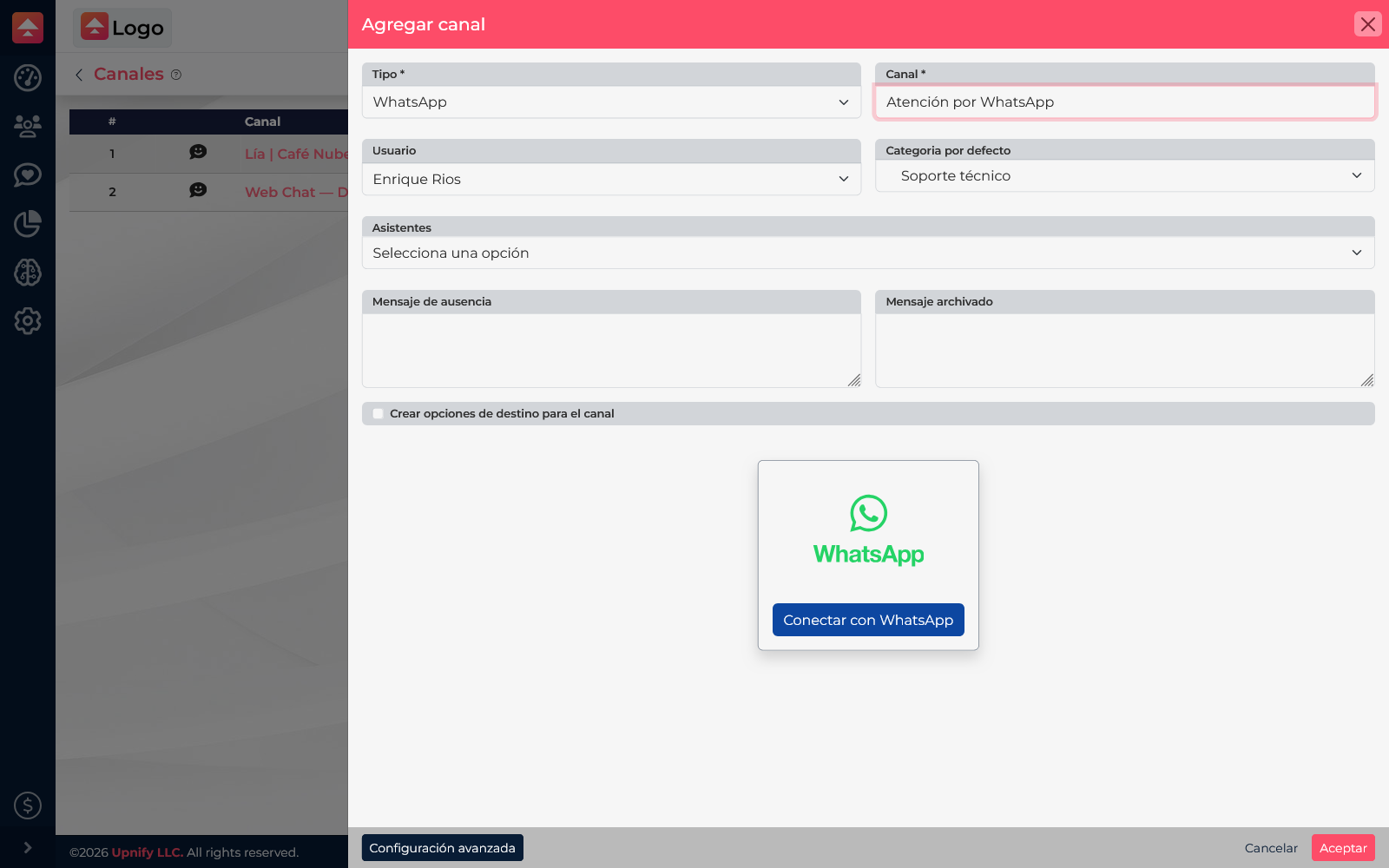
- Select New and choose WhatsApp as the channel type.
- Enter a recognizable name, such as WhatsApp Support. This helps the team identify where a conversation started.
- Choose the responsible user and, if applicable, a default category. You can select an assistant if automated handling should start on this channel.
- Review the other options. Set an absence or archived-conversation message only when you know what you want customers to receive.
2. Connect your account and number through Meta
- In the Connect form, select Connect with WhatsApp. Meta\u2019s embedded authorization flow opens.
- Sign in with the Meta profile that manages the business assets and confirm you selected the right business.
- When Meta asks how you want to connect WhatsApp, choose the option to link the WhatsApp Business app you already use, if it is available for your account. This option lets you keep the same number and continue using the mobile app alongside Connect.
- Meta displays a QR code. On your phone, open WhatsApp Business and follow its linking instructions; scan the code shown in the authorization flow. Do not share this code with anyone.
- If Meta offers to import chat history, decide whether you want to do so. This is optional; the Connect flow can import up to six months of history.
- Complete the confirmations and permissions shown by Meta. When finished, return to Connect, review the form, and select Accept to save the channel.
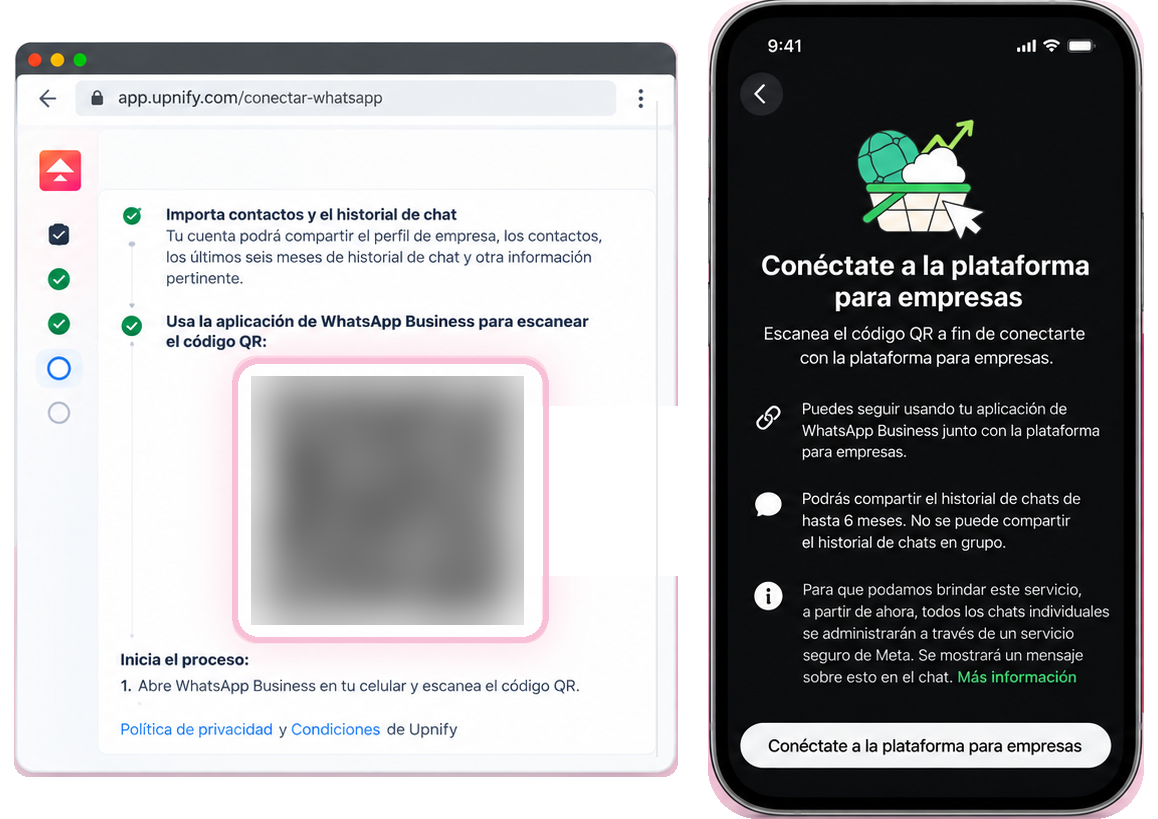
Coexistence is designed for the WhatsApp Business app, not the personal WhatsApp app. Meta determines whether this option is available for an account and number. If it does not appear, do not delete or migrate the number registration to force it; check Meta\u2019s available options or ask your business administrator.
- Keep the same number and handle conversations from both your phone and Connect; messages remain available on both sides.
- To keep the connection active, open WhatsApp Business on your phone at least once every 14 days.
- Groups do not sync. Some app features, such as broadcast lists and view-once messages, may change when using this option.
The innovation notice shows the updated flow: Connect your WhatsApp Business and automatically capture prospects.
If you are not using the WhatsApp Business app with this number, Meta may show a different flow to create or set up the account and register the phone. Follow the instructions shown in your session; options and checks vary according to the company\u2019s assets and eligibility.
3. Make sure the channel is ready
- Return to Settings > Channels and confirm the channel appears without a pending-setup warning.
- Review its name, owner and default category. Also check the distribution rules and working hours that apply to your team.
- Run a controlled test from an authorized phone: message the connected number and confirm the conversation appears in the Connect inbox.
- Reply from Connect and confirm the message reaches the test phone. If you use assistants, categories or distribution rules, verify that the conversation follows the expected route.
If you also want new chats to be recorded as prospects, configure the Convert to prospect phase action in the conversations funnel. When applicable, this links the conversation to the prospect record in CRM. Connecting WhatsApp does not enable this action by itself; see How to configure the conversations funnel and distinguish it from the CRM funnel.
Example: a company receives quote requests on WhatsApp. It connects its sales number, assigns the channel to the responsible person and chooses the \u201CSales\u201D category. The team handles the chat in Connect and keeps its context together, while customers continue using the business number.
If something does not work
| What you see | What to check |
|---|---|
| The connection button is missing or you cannot open Channels | Confirm Connect is enabled for the company and that your user can manage channels. |
| Meta does not show the expected business, account or number | Make sure you signed in with the right profile and that it has access to those assets. Check the requirements shown in Meta\u2019s setup flow. |
| Meta does not offer WhatsApp Business app coexistence | The option depends on eligibility determined by Meta. Do not delete or migrate the number to force it; check Meta\u2019s guidance first. |
| The Meta window ends without returning to Connect | Return to the form and start again. If it continues, allow pop-ups for Suite and check that the browser is not blocking the flow. |
| The channel was saved but messages are not arriving | Check that it is active, the correct number is connected, and distribution rules, categories or agent availability are not routing conversations elsewhere. Then test again. |
WhatsApp in Connect and WhatsApp in CRM
This article covers a Connect conversations channel for teams handling incoming chats. Using WhatsApp from CRM to contact records and Meta-approved templates are separate workflows. See Using WhatsApp from CRM and distinguishing Meta-verified templates.