

The Customers portfolio brings together people with whom your company already has a business relationship. Keeping their records current helps your team review contact details and history before a call, renewal, or new proposal. You can add a new customer or continue from an existing prospect.
Before adding another record
Search for the person in both Customers and Prospects. If the person is already a prospect, convert that record to preserve its details, activities, and follow-up. Add a new customer only when it is a different person or there is no existing record to continue.
Add a customer manually
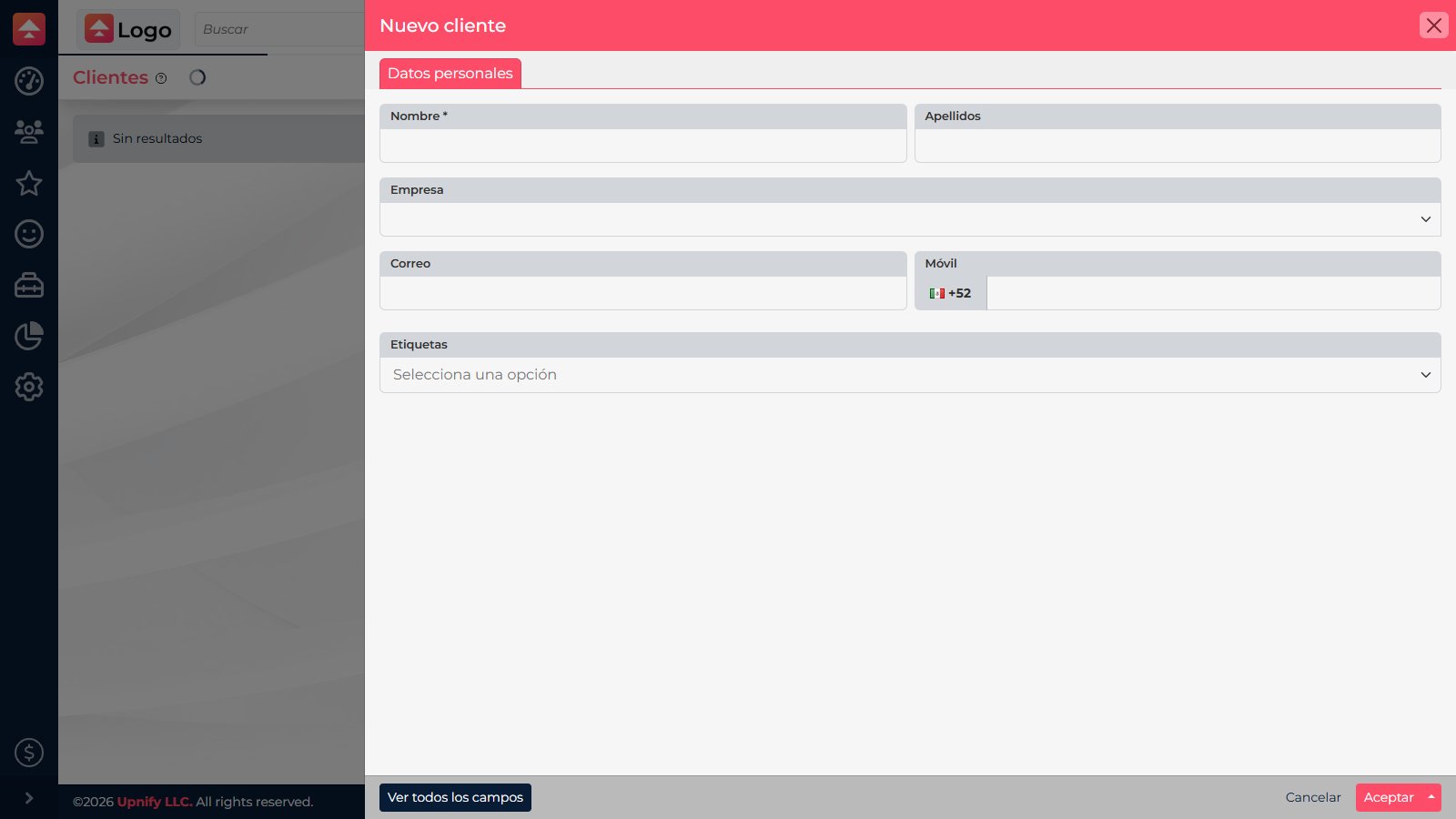
- Open Customers and select New.
- Enter the required Name. Add the email, phone numbers, company, and other details you have. Select Show all fields when you need more options.
- Choose the appropriate phase and origin from your company’s catalogs. Add tags if they help segment or find the customer.
- Select Accept, then find the person in the list to confirm the record was created.
Update an existing record
- Find the customer by name and open the correct record. Check the company and other details that distinguish it from similar records.
- Select Modify and update the fields that have changed, such as contact details, company, origin, phase, comments, or tags.
- Save with Accept. Return to the record and confirm the updated detail appears. Related files, tasks, opportunities, sales, and follow-ups can be reviewed there.
When an opportunity becomes a sale
You do not need to create a second contact to complete the process. When you record and confirm a sale from a prospect’s opportunity, CRM automatically converts that prospect into a customer. You can then find the same person in Customers and review the sale from the record.
See How to link a quotation to an opportunity and convert it into a sale for that workflow.
Note: if you need to add several records, you can also prepare them through data import.